
Welcome from Engram Plus. We help with web development, customization, support, and optimization. In this guide, I will show you how to translate the Dokan Multivendor WordPress Plugin using Loco Translate. If you are building a multilingual marketplace, this guide will help you. If you want to localize your store for a specific country, this will also help. Let’s get started.
Why Translation Matters
If your marketplace targets users from different countries, language matters. People trust websites in their own language. They understand products better. They feel more comfortable buying. The good news is that Dokan supports translation. You only need the right tool.
What You Need
Before we begin, make sure you have:
- A WordPress website
- Dokan Multivendor WordPress Plugin (Lite or Pro)
- WooCommerce installed
- Loco Translate installed
If you are using Dokan Pro, you must translate both Dokan Lite and Dokan Pro. They work as separate plugins. If you have not purchased Dokan Pro yet, you can visit our deal page and get a 10% discount.
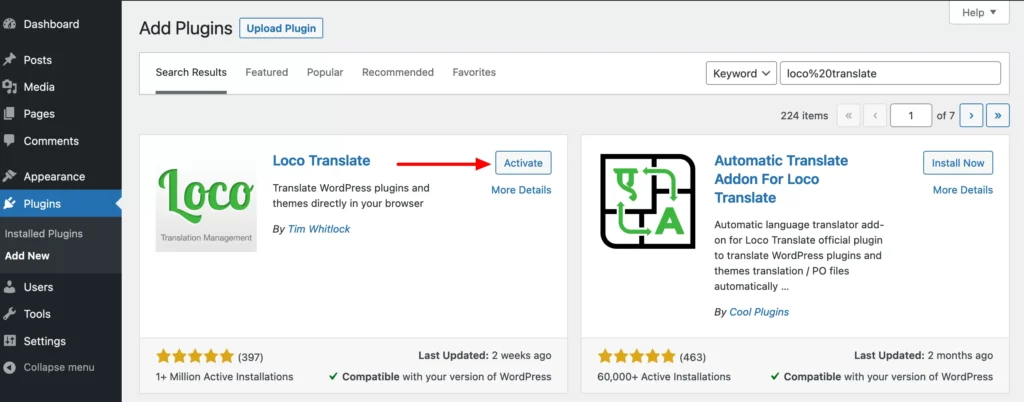
Step 1: Install Loco Translate:
Go to your WordPress dashboard.
Click Plugins → Add New.
Search for Loco Translate.
Click Install Now.
Then click Activate.
You will now see Loco Translate in your admin menu.
It has over 1 million active installations and strong ratings.
Step 2: Check Your Site Language
Go to Settings → General.
Find Site Language.
Select your preferred language.
Save changes.
WordPress and WooCommerce often translate automatically based on this setting. In most cases, you do not need to translate them manually.
Step 3: Important Setting for Dokan Pro Users
This part is only for Dokan Pro users.
Loco Translate uses the plugin folder name as the text domain.
For Dokan Pro, the folder name is dokan-pro. The actual text domain is dokan.
Go to:
Loco Translate → Plugins → Dokan Pro
Click Advanced.
Check the text domain.
If it shows anything different from dokan, change it.
Also adjust the file prefix and template file if needed.
Click Save configuration.
Now you are ready.
Step 4: Create a New Language File
Go to:
Loco Translate → Plugins → Dokan
Click New Language.
Choose your language. For example, French or Spanish.
Loco Translate will create .po and .mo files.
Now choose the file location.
You will see three options:
Custom
Saves inside wp-content/languages/loco/plugins/
Safe from plugin updates
Best option for most users
System
Saves in the global WordPress languages folder
Can be overwritten during updates
Author
Saves inside the plugin folder
Will be deleted during plugin updates
Choose Custom.
Click Start Translating.
Step 5: Translate Strings Manually
You will now see all translatable strings.
Click on a string like Vendor Dashboard.
Add your translation in the box below.
You can search for specific words using the search bar.
Click Save after translating.
Repeat the process for other strings.
After finishing, go back to Settings → General.
Change the site language to your translated language.
Save changes.
Refresh your frontend.
You should now see the translated text.
If not, clear your cache and reload.
Translating Dynamic Strings in Dokan
Some strings are dynamic.
For example:
Go to Dokan → Settings → Vendor Verification.
If you edit something like a Passport label, that exact text appears on the frontend.
To translate these, you have two options:
- Enter the translated text directly inside the setting
- Use WPML integration with Dokan
WPML is useful for translating dynamic and custom strings.
I recommend using WPML if you manage a fully multilingual marketplace.
Bonus Tip: Automatic Translation
If you want to save time, you can use automatic translation.
Install Loco AI Auto Translate for Loco Translate from the plugin directory.
After activation, open your Dokan language file.
You will see a new button called Auto Translate.
Click it.
Choose a provider like:
- DeepL
- Yandex
Start the translation process.
Wait until it finishes.
Click Merge Translation.
Then click Start Adding Translation.
Finally, click Save.
Automatic translation is fast. Still, you should review everything manually. Machine translation can make mistakes.
Final Words
You now know how to translate the Dokan Multivendor WordPress Plugin using Loco Translate.
You also learned how to handle Dokan Pro settings and dynamic strings.
If this guide helped you, consider subscribing to our YouTube channel for more WordPress and Dokan tutorials.
Got questions?
Drop them in the comments.
Happy translating 🙂


Leave a Reply